Wednesday, February 22, 2012

CODEx applications warning when installing Exchange 2007 SP3

I came across this warning during the prerequisite check for an exchange 2007 SP3 installation on a Windows Server 2008R2 Based domain.


No Big deal!
but to use the Collaboration Data Objects for Exchange 2000 Server (CDOEX) feature correctly on Windows Server 2008 R2, a registry key permission must be changed. An administrator has to change the value of the registry key during the Exchange Server 2007 SP3 installation process. A Windows update is released to fix this problem.

A complete description of the update involved can be obtained from http://support.microsoft.com/kb/982720  and

What are CDOEx Applications?

Colloboration Data Object Model for Exchange provides the fundamental Component Object Model (COM) classes and interfaces that are used to manage the Exchange store.

CDOEX can only be run on a computer on which the Exchange Administrative Tools have been installed. The computer running the CDOEXM application and the computer running Exchange must be in the same Active Directory organization.

Thursday, February 9, 2012

Wake On LAN!!!

Okay..I was trying to resolve an Outlook issue of one of my remote clients, and busy reading some online articles when i lost the remote connection to the computer. My monitoring system showed teh PC had gone offline! the user being a difficult one, I wanted the PC online before my client starts work in the morning. I tried the Wake up from LAN on my monitoring software but no! it did'nt work!

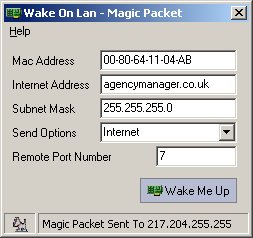
While googling for another wake-up-from-LAN app, i came across a handy little tool :) on http://www.depicus.com : WakeOnLANgui. did it work for my client? no! but it worked for my test lab!

It's a really small exe where you can download and run. 


What you should have:
  1. Wake On LAN enabled in the NIC  and BIOS.
    This is easy! You can enable this function in NIC settings or the management application that came with it!
    NIC integrated to your mainboard? Enable WOL on BIOS.
  2. MAC address of the target computer
 

Here's what to do..
  1. Check whether the network adapter on the target computer supports Wake On LAN.
  2. Download and install WakeOnLanGui from www.depicus.com.
  3. Run WakeOnLanGui on the computer from which you have access.
  4. Type the physical address into the proper field. The other two fields are filled with 255.255.255.255, and the port is 7 or actually any other port. Port 9 is sometimes used.
  5. and Wake Me UP!!!


Why this did not work on my client? simple! I found WOL is not enabled from her BIOS...

Did I manage my client
? well.. we'll see that in the morning!